
Would you like to run a blog of your own? Perhaps you already publish with WordPress but feel you are not taking full advantage of what it offers. A few targeted improvements can make your site look more professional, load faster, rank better in search engines, and encourage readers to return. The practical tips below will help you refine your workflow and present content more effectively.
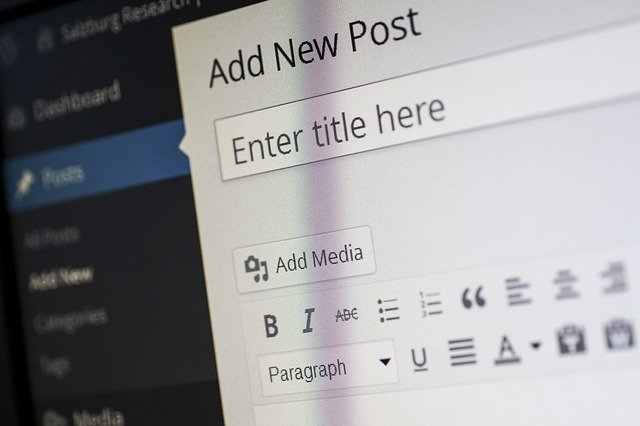
Successful WordPress sites combine strong content, clear structure, and reliable maintenance. When you write for readers, optimize media and metadata thoughtfully, and keep your software updated and backed up, your site becomes easier to manage—and more compelling to visit.
Plan Your Site Before You Build
Plan before you install and configure WordPress, especially for a new site. Clarify your goals, audience, and core topics, then decide on essential pages (such as About, Contact, Privacy Policy) and how visitors will navigate your categories and menus. It also pays to review basic SEO principles—such as internal linking, descriptive headings, and clean URL structures. The WordPress Developer Documentation on SEO provides a solid overview of best practices.
Before building out your site, document a simple plan: your goals, your target audience, and the actions you want visitors to take. This clarity helps you choose the right theme, organize navigation, and prioritize the plugins and pages that support your objectives.
TIP! A brief written plan reduces rework later and keeps design and content decisions aligned with your purpose.
When choosing a hosting provider, consider one that offers simplified WordPress installation tools. One-click installers can reduce setup time and help you avoid configuration errors. However, also evaluate uptime, backups, support quality, and performance, as these factors strongly affect user experience.
TIP! Convenience features are useful, but prioritize reliable support and security practices when selecting a host.
Work More Efficiently in the Dashboard and Editor
Begin by learning the tools available in the editor and the WordPress dashboard. In the Classic Editor, the Kitchen Sink (Toolbar Toggle) button reveals additional formatting controls for headings, text alignment, and other options that can make posts easier to scan and more visually consistent. In the admin area, the Screen Options tab lets you show or hide specific panels on many pages (such as the post editor, media library, and comment screen), helping you reduce distractions and tailor WordPress to your working style.
TIP! Devote time to exploring WordPress features you may have overlooked. Small settings—such as enabling helpful panels through Screen Options—can noticeably improve your efficiency.
If your dashboard feels cluttered, remove unnecessary panels. Use Screen Options at the top of the admin screen to hide boxes you do not use. A cleaner workspace makes it easier to focus and reduces the chance of missing important settings.
Use keyboard shortcuts to work faster in the editor. For headings, WordPress supports convenient shortcuts that can reduce reliance on drop-down menus. In many setups, Ctrl plus a number (1 through 6) can apply heading levels, which is helpful when structuring long posts with clear sections.
TIP! Learning a few editor shortcuts can noticeably speed up writing and formatting, particularly for content-heavy sites.
You can also write posts using alternative authoring tools if you prefer not to work solely in the WordPress dashboard. Depending on your workflow, a dedicated writing application can improve focus and reduce distractions. Ensure any tool you choose integrates cleanly with WordPress and preserves formatting correctly before adopting it for regular publishing.
Publish Strategically and Keep the Homepage Clear
Set a realistic publishing schedule. Consistency helps readers know when to expect new content and makes it easier for you to maintain momentum. You can draft several posts in one session and then schedule them to publish automatically throughout the week. To schedule a post, open the editor, locate the Publish settings, choose a future date and time, and confirm by selecting Schedule.
TIP! A calendar-based workflow often improves follow-through. Even a modest schedule (for example, one high-quality post per week) is more sustainable than sporadic bursts.
By default, posts appear in reverse chronological order. If you need to reorder content—such as highlighting an announcement or correcting a publication date—edit the post and adjust its date in the editor settings, then update the post. This simple change can move content up or down your blog feed without duplicating it.
Use “Read more” links to keep your homepage clean and scannable. Displaying full-length articles on the front page can overwhelm visitors and slow page loads. Summaries with a “Read more” link create a better first impression and help readers quickly find the content most relevant to them.
Create a clear greeting or heading at the top of your homepage to make the site feel more personal and purposeful. A brief, well-written message can quickly explain who the site is for and what visitors will gain by reading it. For example: “Practical WordPress guidance for small businesses and creators—tutorials, checklists, and troubleshooting.” Use a simple layout and avoid overly promotional text so the message feels welcoming rather than automated.
Improve Content with Video, Images, and Clear Formatting
Consider adding video to support tutorials, product walkthroughs, interviews, or announcements. Video often communicates processes and emotions more clearly than text alone, which can improve time-on-page and reader understanding. WordPress makes this approachable: you can embed videos from platforms such as YouTube or Vimeo by pasting a URL into the editor, or upload video files if your hosting plan supports it. When using video, include a short summary beneath the embed and ensure you provide context for readers who cannot watch with sound.
TIP! Video can be highly effective, but allocate time for preparation—write a brief outline, keep clips focused, and add captions when possible to improve accessibility.
Use images strategically. Visuals can clarify concepts, break up long sections, and make posts more engaging—particularly for tutorials and step-by-step guides. Always include alt text to describe the image for screen readers and to provide context if the image cannot be displayed. Also ensure images are appropriately sized and compressed to improve performance.
TIP! Images add impact, but performance matters: compress files and avoid uploading unnecessarily large images.
Optimize images before and during upload. Use descriptive filenames (for example, wordpress-media-library-organization.jpg), add meaningful alt text for accessibility, and include a clear title when appropriate. These practices help search engines interpret your content and improve how images appear when shared on social platforms. If a visitor pins an image to Pinterest, the image title may be displayed, so a concise, accurate title can improve click-through.
TIP! Improve your visibility in search results by adding descriptive image titles and alt text. This benefits both SEO and accessibility.
Strengthen SEO and Internal Navigation
Write targeted titles and meta descriptions. These are often the first elements users see in search results and can strongly influence whether they click. SEO plugins can help you control these fields and preview how your pages may appear in results. Use a clear main keyword, but prioritize readability and a direct value proposition for the user.
TIP! Treat titles and descriptions as marketing copy: be specific, avoid filler, and align the promise with what the page delivers.
Strengthen internal navigation by linking related posts. Internal links help readers discover additional content and can support SEO by clarifying topic relationships. You can add these links manually within your text or use plugins that suggest related articles and append them near the end of a post. When adding links, use descriptive anchor text (avoid vague labels like “click here”).
Manage Media, Comments, and Community Growth
Keep your media library organized as your site grows. Uploading everything into the library without a plan can become difficult to manage, especially when you want to reuse images later. Use consistent naming conventions, and consider relying on categories, tags, or structured folders if your workflow supports them. Organized media reduces time spent searching and prevents duplicate uploads.
TIP! Establish an organizational approach early. It is far easier to maintain order from the start than to clean up a crowded library later.
Encourage comments to build community and learn what your audience values most. Thoughtful discussion can improve content ideas, clarify questions, and increase return visits. If you are concerned about spam or promotional posts, enable moderation for first-time commenters and set clear comment guidelines.
TIP! Community grows faster when readers feel heard. Reply to constructive comments and ask a question at the end of posts to invite discussion.
Keep your site tidy by removing low-value content and managing spam comments. A clean comment section improves credibility and makes discussions more useful for readers. Tools like Akismet can filter spam automatically, reducing manual moderation and protecting your site from common comment abuse.
If you receive many comments, streamline moderation to save time while still protecting your site. Configure WordPress discussion settings to hold new commenters for approval, but allow trusted users to post without repeated review. Spam-filtering tools can reduce the workload significantly, while thoughtful moderation keeps the conversation relevant and respectful.
Use Plugins Wisely and Maintain Your Site Securely
Before installing any plugin, evaluate it carefully. Review user ratings, read recent feedback, confirm compatibility with your WordPress version, and check when it was last updated. Since anyone can publish a plugin, these checks reduce the risk of installing tools that are buggy, insecure, or abandoned.
TIP! Favor plugins with active maintenance, strong reviews, and a clear support history—especially for security, SEO, and backups.
Finally, do not assume paid plugins are automatically unnecessary. Some premium plugins provide higher-quality support, advanced features, and meaningful time savings. Evaluate them based on reliability, total cost of ownership, and whether they reduce manual work or improve results.
TIP! A plugin is “worth it” when its benefits—time saved, risk reduced, or performance improved—clearly outweigh its cost.
Keep WordPress core, themes, and plugins updated. Updates frequently include security patches, compatibility improvements, and bug fixes. Running outdated software can expose your site to known vulnerabilities. The WordPress Security page explains how WordPress approaches security and why timely updates matter.
TIP! Enable automatic updates where appropriate and review updates regularly, especially for security-related releases.
Back up your site consistently. A reliable backup routine protects you from hosting problems, hacking, accidental deletions, and failed updates. Use a trustworthy backup solution and store backups in more than one location (for example, cloud storage plus a local copy). Test restoring a backup occasionally so you know the process works before an emergency occurs.
TIP! Backups are most effective when automated, stored off-site, and tested periodically.
Troubleshooting Common Issues
If you update your site and do not immediately see the changes, your work is usually not lost. Most often, the browser or a caching plugin is serving an older version of the page. Try clearing your browser cache or performing a hard refresh (for many browsers, holding Shift while reloading). If you use a caching plugin or a content delivery network, clear those caches as well.
TIP! When changes do not appear, check caching before redoing your work. Clearing caches can save significant time and frustration.